01What it does
What does the TikStage Canvas do?
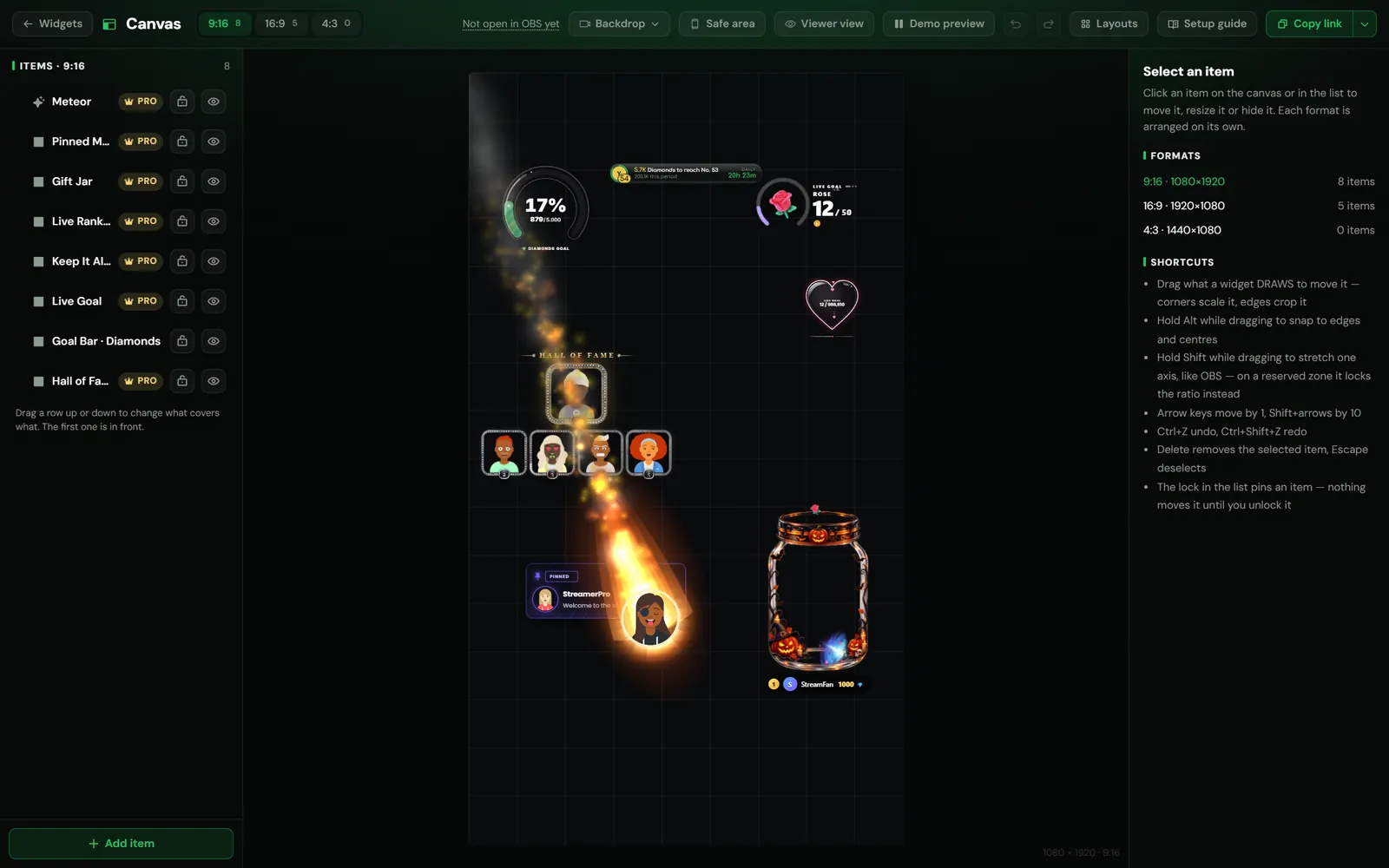
The TikStage Canvas places the widgets you configured in TikStage on one picture, in 9:16, 16:9 or 4:3, and gives you one link for OBS or TikTok LIVE Studio instead of one browser source per widget. When you move a widget, the source that is already open follows by itself.
At a glance
| Plan | Free. On the Free plan the link shows your free widgets; Premium widgets show on air with Premium. |
|---|---|
| Where you arrange it | The TikStage desktop app for Windows, under Studio, next to Widgets. Not in a web browser. |
| Formats | 9:16 (1080 × 1920), 16:9 (1920 × 1080) and 4:3 (1440 × 1080). |
| Capacity | Up to 40 items per canvas and 30 saved layouts, per stream profile. |
| Widget settings | They stay on the Widgets page, or on the widget's own page. The Canvas only decides where each widget goes. |
02How to set it up
How do I set up my TikTok LIVE overlay layout?
Open Canvas in the TikStage desktop app, add the widgets you want, arrange them in your LIVE's format, and paste the one link into OBS or TikTok LIVE Studio as a browser source the size of your LIVE.
Open the Canvas
In the TikStage desktop app, open Canvas under Studio, next to Widgets.
Download TikStage for WindowsAdd your widgets
Press Add item and pick a widget. Adding it also switches it on in Widgets, and for most widgets its settings dialog opens right away.
Arrange them
Pick your format (9:16 for a vertical LIVE) and drag each widget into place. Corners scale it, edges crop it, and Ctrl+Z undoes.
Copy the link
Press Copy link. The Auto link follows the size of the source, so one link serves every format.
Add it to OBS or LIVE Studio
Add it as a browser source sized to your LIVE format, such as 1080 × 1920. The Setup guide shows every step in pictures.
03Safe zone
How do I check the TikTok LIVE safe zone?
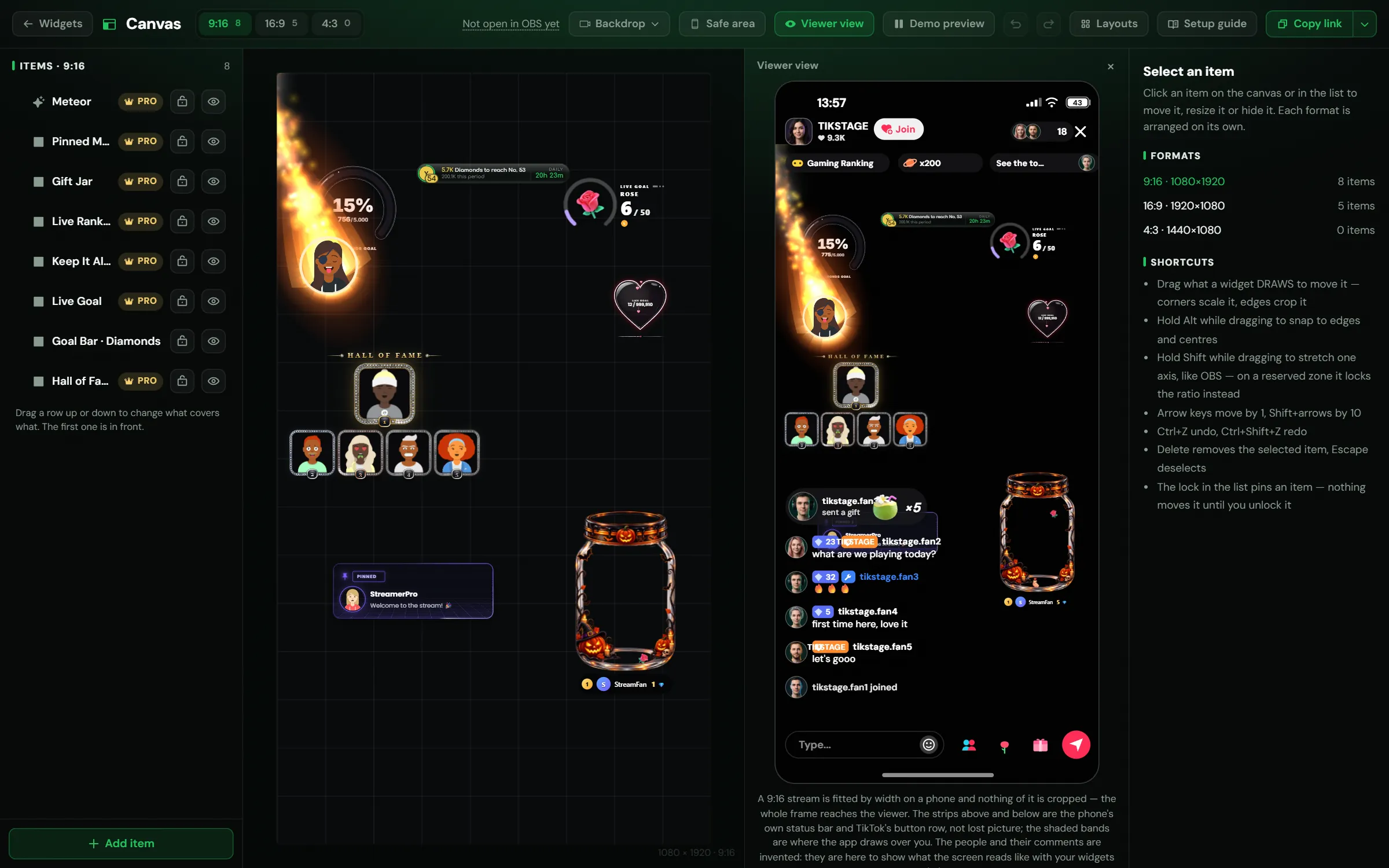
Press Safe area on the TikStage Canvas: it shades where the TikTok app draws over your stream on a phone, its header at the top and the comments and gift alerts at the bottom. Viewer view shows your whole layout inside a phone with TikTok's bars over it.
Nothing is cut off: the whole frame reaches the viewer, with TikTok's own buttons and chat on top. The bands are deliberately generous, because the chat grows upward as messages arrive. On 16:9 and 4:3 nothing is covered, so the button shows only on 9:16.
Backdrop puts your real scene behind the canvas. Start the Virtual Camera in OBS or LIVE Studio, pick it under Backdrop, and place widgets over your face or your game instead of an empty canvas. Safe area, Viewer view and Backdrop are shown only in the editor, never on air.
04Vertical and landscape
Can one overlay layout work for vertical and landscape?
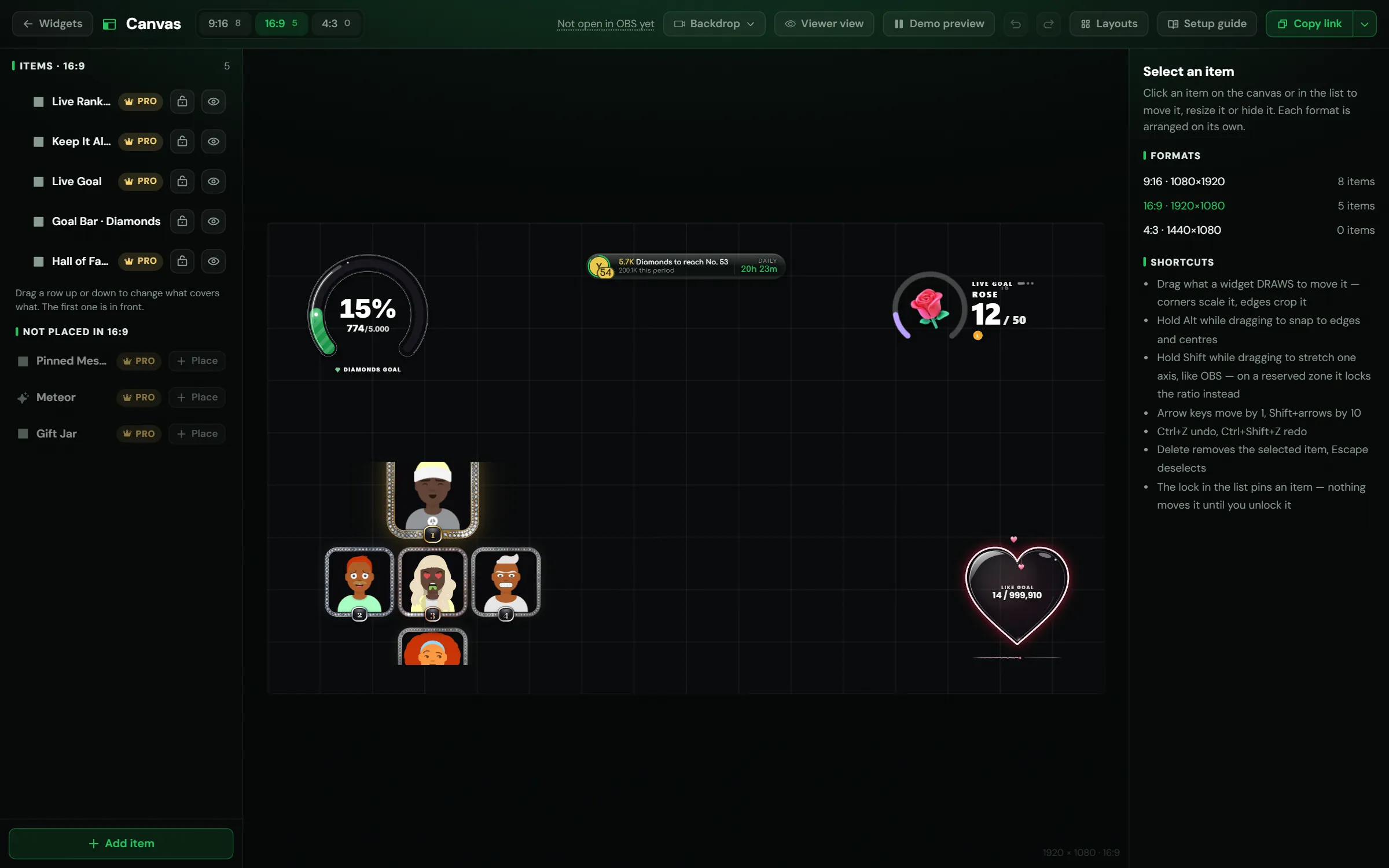
Yes. The TikStage Canvas has three formats, each arranged on its own, and the Auto link shows the one that matches your source: a portrait source gets 9:16, a landscape one 16:9, and an 800 × 600 source 4:3.
- Copy from another format. While a format is still empty, a button such as Copy from 9:16 places every item as it is there, keeping each one's distance to the nearest side.
- Pinned links. The Copy link menu also has one link per format, such as Always 9:16, which shows that arrangement whatever the source size, scaled to fit.
- Layouts. Layouts save whole arrangements, like Live gaming or Face cam, in all three formats, and let you switch between them in one click. Widget settings are not part of a layout.
05OBS and LIVE Studio
How do I add the Canvas to TikTok LIVE Studio?
The TikStage Canvas Setup guide shows three ways with annotated screenshots: through the OBS Virtual Camera into LIVE Studio, straight into OBS, or straight into TikTok LIVE Studio. On a monitor above 120 Hz, the app recommends the Virtual Camera way, because it works at any refresh rate.
| Path | What you do |
|---|---|
| OBS Virtual Camera → LIVE Studio | Add the Canvas link in OBS with your camera and other sources, press Start Virtual Camera, then add OBS Virtual Camera in LIVE Studio as its only source. Changes in OBS reach LIVE Studio by themselves. |
| OBS Studio | Add a Browser source, paste the link, and set its Width and Height to your LIVE format. |
| TikTok LIVE Studio | Add the link with Custom resolution and a temporary size such as 2000 × 1000, then open the source settings again and type your real LIVE size. |
The Canvas header shows where your link is open and at what size, for example Open in OBS · 1080×1920 → 9:16. It turns amber when the source is the wrong size or shows a format you have not arranged, and red when LIVE Studio drops your widgets' frames on a monitor above 120 Hz. Then a click on it opens the guide.
06Limits
What are the limits?
The TikStage Canvas editor runs only in the Windows desktop app, it holds up to 40 items per stream profile, and Starting Soon and Be Right Back stay separate sources.
- The editor runs only in the Windows desktop app, not in a web browser. The link runs in OBS or LIVE Studio.
- On the Free plan, Premium widgets can be arranged but are not shown on air until you upgrade.
- Up to 40 items per canvas and 30 saved layouts, per stream profile.
- Starting Soon and Be Right Back cannot go on the Canvas. Add them as their own browser sources.
- An overlay screen from Actions can go on the Canvas too. Then delete that screen's own browser source, or each alert plays twice.
- LIVE Studio can open the source smaller than you set, cut to your screen, and does it again on every LIVE Studio start. Setting the resolution again in the source's settings fixes it.
07Is it free?
Is the Canvas free?
Yes. The TikStage Canvas is part of the Free plan, which has no expiry date. On Free the link shows your free widgets; with Premium it shows every widget you place.
Free plan
Canvas with free widgets
The whole editor, with Safe area, Viewer view, Backdrop and Layouts. Premium widgets can be arranged but stay off air. One stream profile.
Premium
Every widget on air
Premium widgets show on the Canvas link too, and 10 stream profiles each keep their own canvas.
08FAQ
More questions creators ask
Do the safe area, the backdrop or the placeholders show on my LIVE?
No. Safe area, Viewer view, Backdrop and the Camera, Game and Custom area placeholders appear only in the editor.
Do I have to set up my widgets again for the Canvas?
No. Their settings stay on the Widgets page, or on the widget's own page, and Edit settings on the Canvas opens the same dialog as Widgets.
What size should the Canvas source be?
Your LIVE format: 1080 × 1920 for a vertical LIVE, 1920 × 1080 for 16:9, 1440 × 1080 for 4:3. A source that is too small shows a warning on air until you fix the size.
Does each stream profile have its own Canvas?
Yes. The link shows the active profile's canvas, and switching profiles reloads the open source with the new arrangement. The Free plan has one stream profile.
What are Live Designs?
Animated designs on their own page: 26 camera frames, free, and 7 full-screen 1080 × 1920 scenes, Premium. A camera frame and a scene can also go on the Canvas, the scene only in 9:16.