01What they are
What are TikStage's TikTok LIVE overlays?
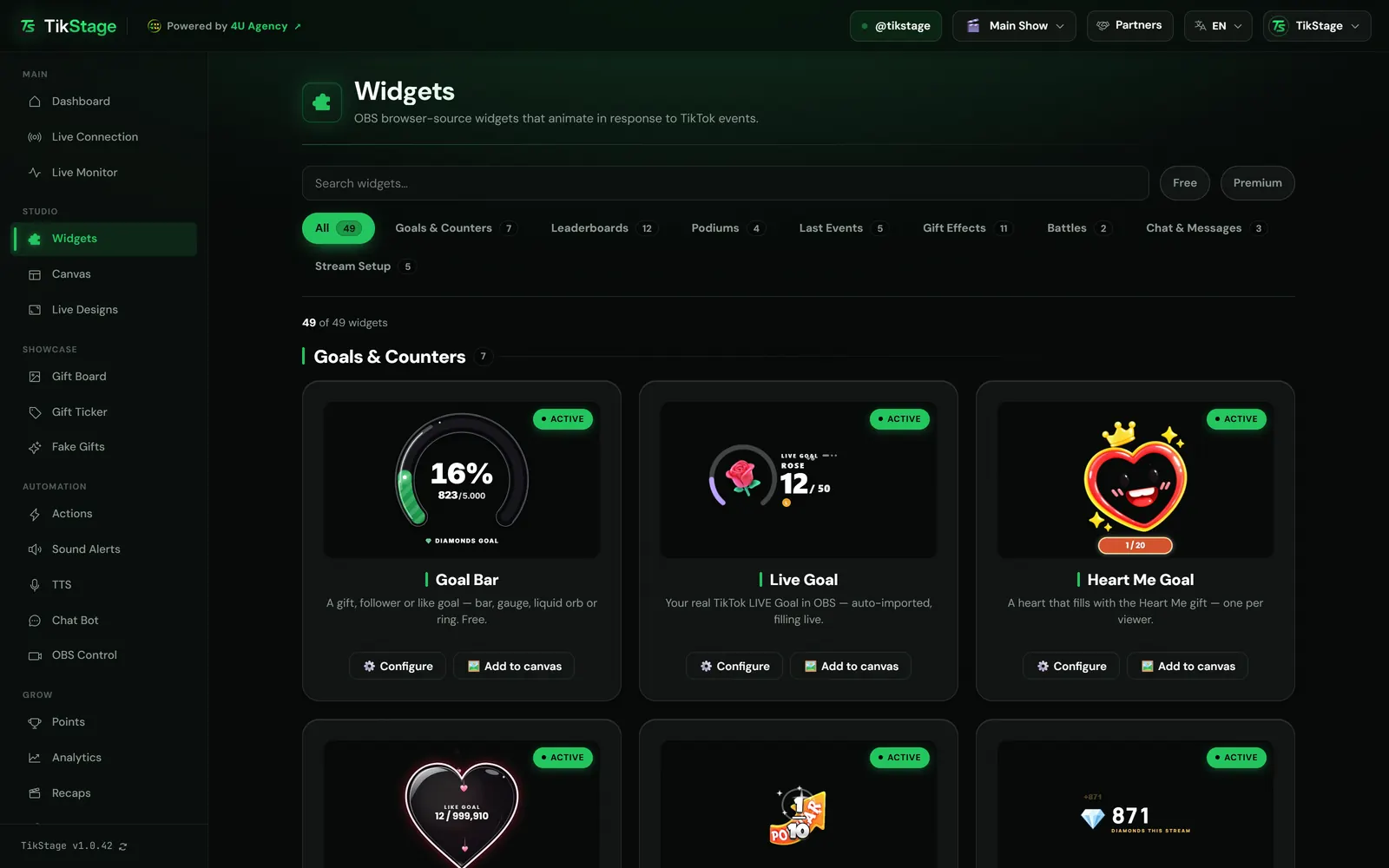
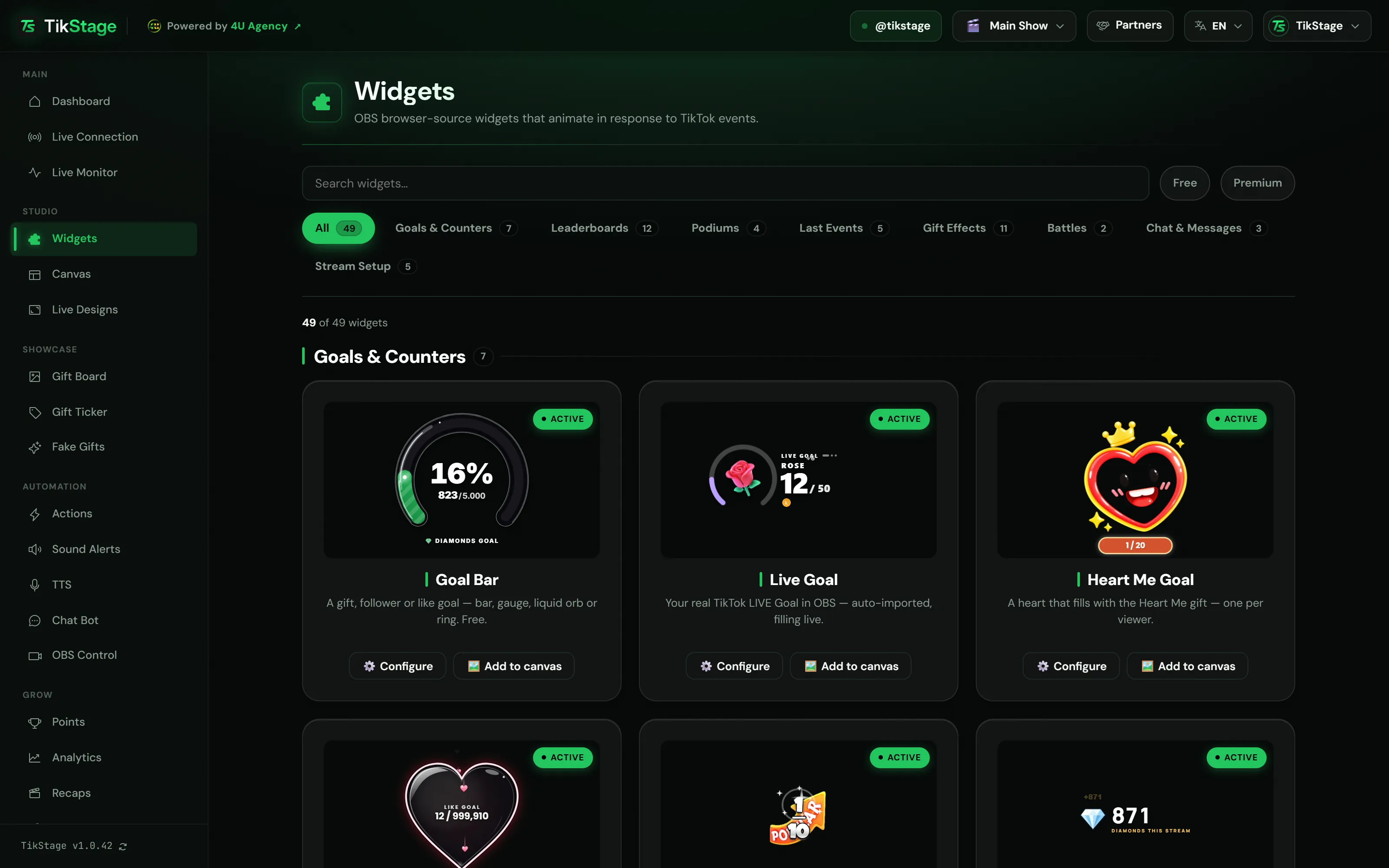
TikStage overlays are animated widgets for your TikTok LIVE: goal bars, alerts, leaderboards, podiums, gift effects, chat and stream setup scenes. Each widget is one browser-source link that you paste into OBS or TikTok LIVE Studio, and it reacts to your LIVE as it happens.
At a glance
| Plan | 18 widgets are free on the Free plan, with all their styles. The other 42 are part of Premium. |
|---|---|
| Widgets | 60 in all: 56 cards on the Widgets page in 8 categories, plus Gift Ticker, Spotify · Now Playing, Giveaway and Auction on their own pages. |
| Where you set them up | The TikStage desktop app for Windows (64-bit installer). |
| Where they show | OBS Studio or TikTok LIVE Studio, as a browser source (a Link source in LIVE Studio). |
02Add one to OBS
How do I add a TikStage widget to OBS?
Open the widget's Configure dialog in the TikStage desktop app, copy its link with Copy, and add it in OBS as a Browser source. When you change something later, press Save Settings: the widget that is already in OBS updates by itself.
Get the desktop app
The Widgets page is in the TikStage desktop app for Windows. Sign in to TikTok there: TikStage connects to your LIVE with your own login.
Download TikStage for WindowsOpen it and copy its link
On the Widgets page, find the widget and press Configure. Under Browser source URL, press Copy.
Add it in OBS
In OBS, under Sources, press + (or right-click and choose Add), pick Browser, and paste the link into the URL field.
Style it and go live
Change the style, texts and colours while the preview plays demo data, then press Save Settings. Connect TikStage to your TikTok LIVE, and the widgets start reacting.
03The widgets
Which widgets can I add to my TikTok LIVE?
TikStage has 60 widgets for goals, leaderboards, gift effects, chat and stream setup. 18 of them are free, including Goal Bar, Alerts, Chat, Timer and Leaderboard.
| Group | Widgets |
|---|---|
| Goals and counters | Goal Bar, Live Goal, Heart Me Goal, Keep It Alive, Level Up, and counters for diamonds, followers and one gift. |
| Leaderboards and podiums | 17 boards and cards for top gifters, likers, combos and all-time supporters, 4 podiums and 5 Last Events widgets. |
| Gift effects and battles | Alerts, Firework, Gift Jar, Gift Wheel, Meteor and more, plus Gift Battle and Battle PK. |
| Chat and stream setup | Chat, Pinned Message, Live Events Feed, Starting Soon, Be Right Back, Timer, stats and your socials. |
| On their own pages | Gift Ticker, Spotify · Now Playing, Giveaway and Auction. |
The Goal Bar holds three goals in one dialog: diamonds, likes and followers. Each goal has its own OBS link, so you can show one, two or all three, each where you want it.
Alerts is one link for six moments: a gift, a long combo, a new follower, a like milestone, a share and a new Super Fan, each with its own switch, caption and sound. Alerts runs on its own: if you also set up an alert for the same gift in Actions or Sound Alerts, both play. The Alerts and Actions guide covers those.
04TikTok LIVE Studio
Can I use TikStage overlays in TikTok LIVE Studio?
Yes. You can build your scene in OBS and send it into TikTok LIVE Studio with the OBS Virtual Camera, or add a widget's link to LIVE Studio directly as a Link source. The TikStage app recommends the Virtual Camera way, because it works at any monitor refresh rate.
- Add your widgets to a scene in OBS as described above, together with your camera, images and videos.
- In OBS, press Start Virtual Camera.
- In LIVE Studio, add a Camera source (or a Capture card) and pick OBS Virtual Camera. Turn on Flip, so the picture is not mirrored.
- That is the only source LIVE Studio needs. From then on you add, move, hide or delete in OBS, and LIVE Studio follows by itself.
LIVE Studio can also run a TikStage link on its own, as a Link source. LIVE Studio cuts the size on the first load, so for the Canvas link the app's guide says: turn on Custom resolution, type a temporary size such as 2000 × 1000, add the source, then open its settings again and type your real LIVE size.
05Styles and Canvas
Can I change the style, colours and fonts of a widget?
Yes. Every widget on the TikStage Widgets page opens the same kind of settings dialog: a live preview on demo data on the left, and on the right its link, styles, what it shows, and size, text, font and colours. Save Settings applies your changes to OBS without a refresh.
What are Canvas and Live Designs?
Canvas puts your widgets into one OBS or LIVE Studio source, arranged on a 9:16 (1080 × 1920), 16:9 (1920 × 1080) or 4:3 (1440 × 1080) canvas. On the Free plan it holds free widgets only. Live Designs are animated frames for the zones of your stream, each zone with its own link. The camera frames are free; the Scenes for your whole screen are part of Premium.
06Limits
What are the limits?
TikStage widgets are set up in the Windows desktop app and react only while TikStage is connected to your LIVE. Most counts start again on a new LIVE, and some widgets show only what TikTok sends.
- Set up in the TikStage desktop app for Windows only: the dashboard does not open in a web browser, and there is no Mac build.
- In LIVE Studio above 120 Hz, widgets added directly drop frames.
- Live Goal needs a LIVE Goal set in TikTok LIVE Studio, with up to about three gifts.
- On the Free plan, Points stop adding once you reach 3,000 supporters or 250,000 diamonds: nothing is deleted, but Top Supporters stops changing until you upgrade.
- On the Free plan, a Premium widget's link shows a "Premium Required" page in OBS, and the Canvas holds free widgets only.
07Is it free?
Are TikStage overlays free?
Partly. 18 widgets, with all their styles, are free on TikStage's Free plan, which has no expiry date. The other 42, such as Live Goal, Gift Jar, Gift Wheel and Starting Soon, are part of Premium.
Free plan
18 widgets
Goal Bar, Top Supporters, Top Liker, Leaderboard, Combo King, Combo Kings, the five Last Events widgets, Alerts, Like Fountain, Firework, Chat, Live Events Feed, Timer and Social Media Rotator.
Premium
All 60 widgets
42 Premium widgets on top of the 18 free ones, every widget on the Canvas, and the Live Designs scenes.
08FAQ
More questions creators ask
Do I need to download anything?
Yes, the TikStage desktop app for Windows. The Widgets page is there, and so is the connection to your LIVE.
What size should the browser source be?
Most separate widgets can be any size, and 800 × 600 is fine. Starting Soon and Be Right Back take your whole screen (1080 × 1920 or 1920 × 1080), and a Canvas source should match your LIVE format, such as 1080 × 1920 for a vertical LIVE.
Can I put all my widgets into one OBS source?
Yes, most of them, with the Canvas: one link for a 9:16, 16:9 or 4:3 arrangement. Starting Soon and Be Right Back stay separate sources.
Does the Goal Bar keep its progress between lives?
No. Each goal starts again on a new LIVE: diamonds and followers reset to 0 when you reconnect to TikTok, and likes follow the new room's like total.