

01What it does
What does the TikStage chat bot do?
It writes messages into your own TikTok LIVE chat for you while you are live. It thanks people for following, sharing, liking, sending gifts and becoming Super Fans, answers chat commands such as !discord with a reply you wrote, and posts a rotation of your own announcements every few minutes.
!discord and the bot answers with your reply.How commands work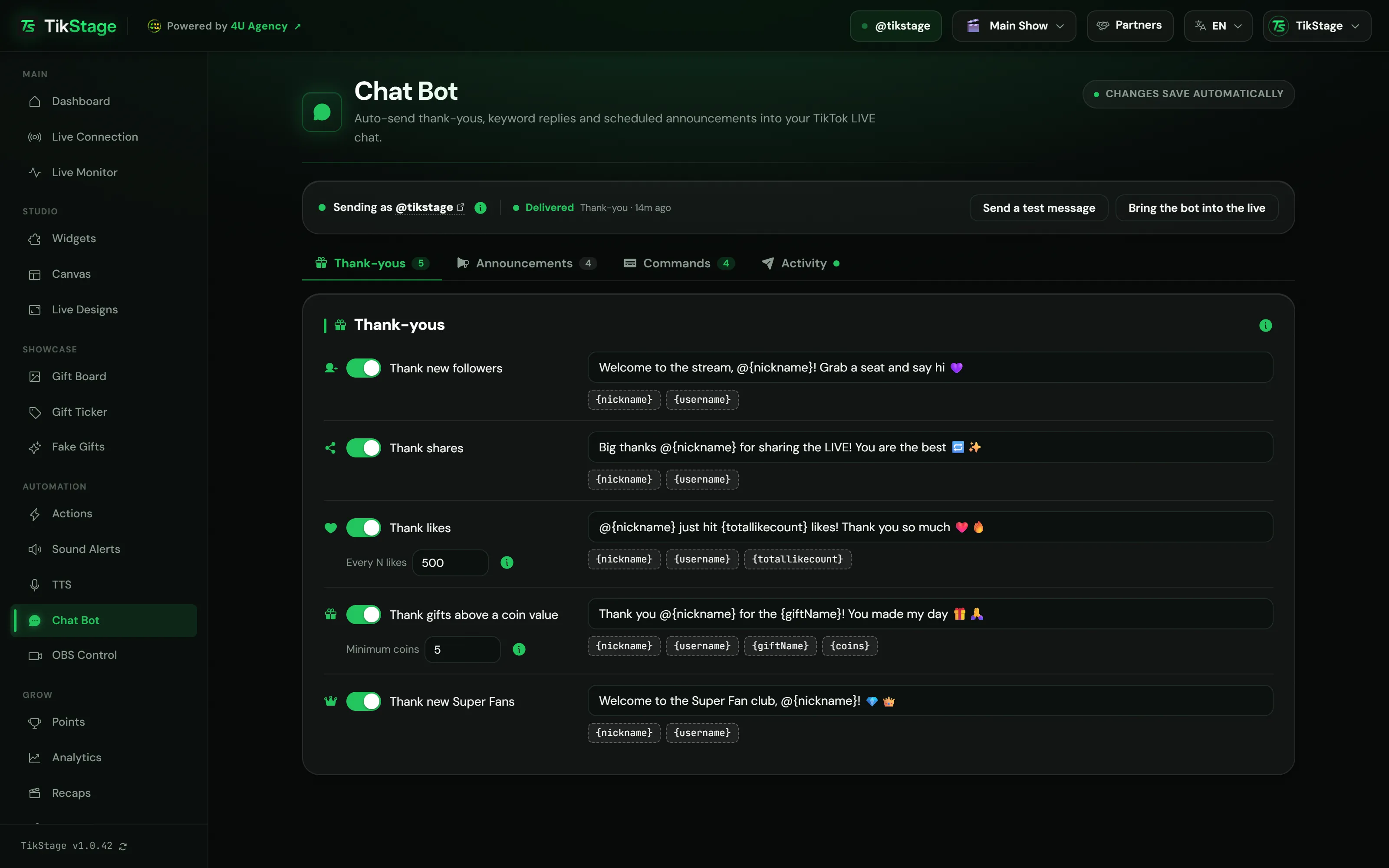
At a glance
| Plan | Premium. The Free plan does not include the Chat Bot. |
|---|---|
| Where it runs | The TikStage desktop app for Windows (64-bit installer). Not in the web dashboard, no Mac build. |
| Sends from | Your own TikTok account, signed in inside the desktop app. No separate bot account. |
| Posts into | Only your own LIVE, and only while TikStage is connected to it. |
| What it sends | Thank-yous, command replies and announcements that you wrote, up to 150 characters each. |
| Tracking | The Activity tab: the last 50 messages on that computer, marked Delivered once they came back in your chat. |
02How to set it up
How do I add a chat bot to my TikTok LIVE?
Install the TikStage desktop app for Windows, be on a Premium plan, sign in to TikTok inside the app, confirm once that messages may go out from your account, and switch on the parts you want. The bot starts posting when TikStage is connected to your own LIVE.
Get the desktop app
The Chat Bot lives in the TikStage desktop app for Windows.
Download TikStage for WindowsSign in to TikTok inside the app
Log in on the app's Live page. The Chat Bot page then reads Sending as @yourname.
Confirm once
Before the first message, the page asks Do you agree? You answer with Send messages from my account, once per computer.
Switch on what you want
Turn on the thank-yous you want, add commands (one click adds
!discord,!id,!socialsor!score), and write at least five different announcements if you want a rotation.Go live, connect, and test
Connect TikStage to your own TikTok LIVE and press Send a test message. It posts one real message, TikStage bot test ✅, or shows exactly what is stopping the bot.
03Thank-yous
How does it thank followers, gifts and likes?
With five thank-you rules. Each one has its own switch and its own message, and all five are off until you turn them on.
| Rule | When it fires | Default message |
|---|---|---|
| Thank new followers | A viewer follows you. | Welcome, @{nickname}! Great to have you here ❤️ |
| Thank shares | A viewer shares the LIVE. Once per viewer per LIVE, however many times they share. | Thank you @{nickname} for sharing the LIVE! 🔁 |
| Thank likes | One viewer's own likes in this LIVE reach the next multiple of Every N likes (default 500). | Thank you @{nickname} for {totallikecount} likes! ❤️ |
| Thank gifts above a coin value | A single gift whose own price is at least Minimum coins (default 100). The same viewer with the same gift gets at most one thank-you every 2 minutes. | Thank you so much @{nickname} for {giftName}! 🎁🙏 |
| Thank new Super Fans | A viewer buys or renews a TikTok LIVE subscription (Super Fan). | Thank you @{nickname} for becoming a Super Fan! 💎 |
Good to know
- Cheap gifts do not add up. The gift rule compares the price of one gift, so 200 Roses stay 1 coin each and never reach a 100-coin threshold.
- Avoid the word "follow". If your follow message contains it, the page shows a tip, because TikTok may hide such comments.
04Commands
Which commands can it answer?
Any command you add, up to 30. Commands are a table of command and reply: when anyone types the command in your LIVE chat, the bot answers with your reply.
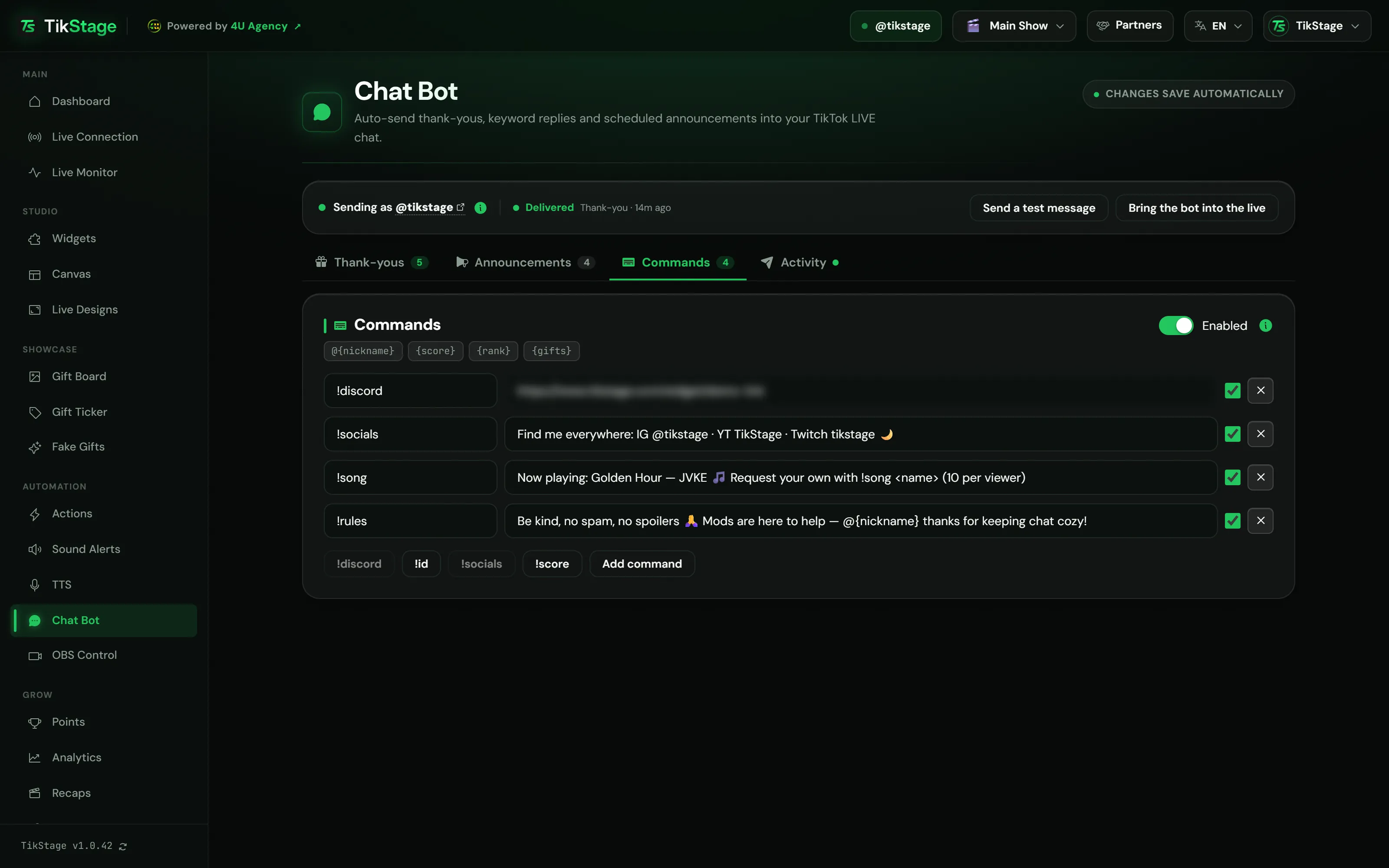
Command replies can use {score}, the viewer's total diamonds with you in TikStage Points, {rank}, their place, and {gifts}, how many gifts they sent. More in the Points and leaderboards guide.
Rules worth knowing
- A command is up to 40 characters, a reply up to 150.
- Anyone in chat can use a command, including you, since the bot posts from your account.
- No per-command cooldown. An identical reply inside 10 seconds is sent once.
05Announcements
Can it post announcements on a timer?
Yes. Scheduled announcements post one of your prepared messages every N seconds while you are live, in order or in random order. The shortest interval is 300 seconds (5 minutes), and the rotation needs at least five different texts before it can be switched on.
Why five: TikTok blocks a message it has already seen too many times. So the Enabled switch only turns on once you have at least five different active announcements. The first one goes out about one interval after TikStage connects, not instantly.
Welcomes, thank-yous, questions such as "Where are you all watching from?" and friendly stream info tend to get through.
Saved on this computer
Announcements are saved in the desktop app on that computer only, not in your TikStage account, so they do not follow you to another PC. Thank-yous and commands are saved in your account.
06Limits
What are the limits?
The bot cannot make TikTok show a message, it only runs in the Windows desktop app while you are live, and on a busy LIVE it spaces messages out and drops old ones rather than sending them late.
- Windows desktop app only: not in the web dashboard, no Mac build, no TikStage phone app.
- TikTok can accept a message and still show it to nobody. It hides follow and like requests and engagement bait.
- If TikTok refuses the same text 3 times in a row, the bot stops sending that text for the rest of the LIVE, until you reword it.
- On a busy LIVE, not every event gets a thank-you and not every command gets an answer.
- If the bot sends the exact same text again in the same LIVE, it adds a small emoji at the end so TikTok does not treat it as a duplicate. This cannot be switched off.
07Is it free?
Is it free?
No. The Chat Bot is part of Premium. TikStage has a Free plan with no expiry date, but the Chat Bot is not in it.
Free plan
No Chat Bot
The Chat Bot page shows a Premium feature card instead of the settings, with a way to upgrade.
Premium
The whole Chat Bot
All five thank-you rules, up to 30 commands, announcements and Activity. There is no separate Chat Bot tier.
08FAQ
More questions creators ask
Do I need to be live for it to work?
Yes. It only sends while TikStage is connected to your own LIVE, and only into your own LIVE.
Does it write its replies with AI?
No. Every message is text you wrote, with placeholders such as {nickname} filled in.
Can it welcome everyone who joins my LIVE?
No. It thanks five things: new followers, shares, likes, gifts above your coin value and new Super Fans.
How do I know a message really appeared in chat?
The Activity tab marks a message "Delivered" only after the app saw it come back in your LIVE chat, and explains the problem when it did not.
How often can it post?
At most about two automated messages every 15 seconds.