

01What it does
What does the TikStage giveaway do on TikTok LIVE?
TikStage's Giveaway runs a raffle on your TikTok LIVE. You open the entries, viewers join by typing your keyword in chat, and when you press Draw winner TikStage picks one of them at random and the overlay animates the draw on stream.
!join to start with. One entry each, and you see who is in.How entering worksThe drawOne random winner per draw, announced in your chat if you want.How the winner is pickedThe overlayOne link for OBS, in six designs, with an animated draw.See the overlay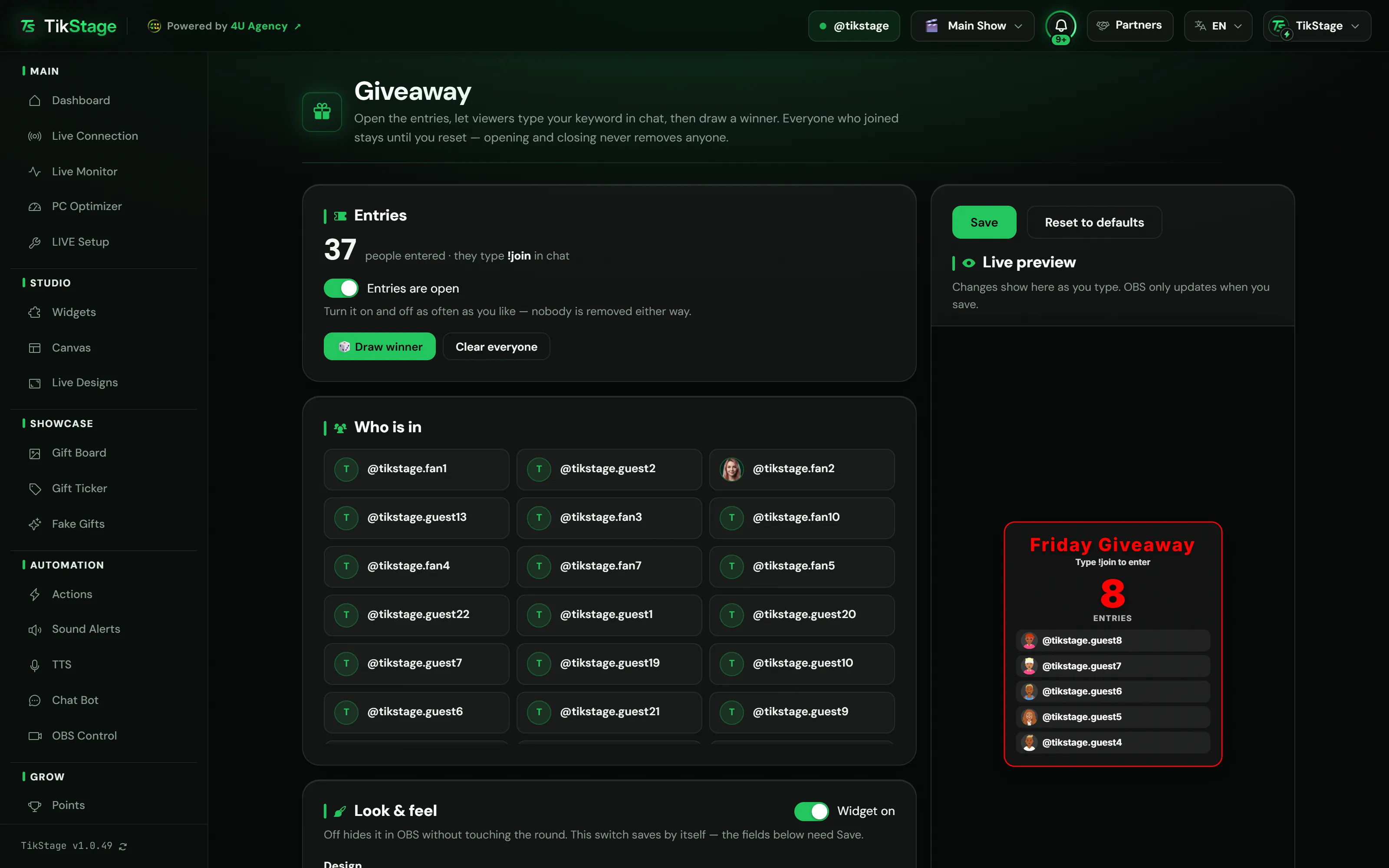
At a glance
| Plan | Premium. On the Free plan the page shows a demo of the overlay. |
|---|---|
| Where it runs | The TikStage desktop app for Windows. The overlay is a link for OBS. |
| How viewers enter | By typing your keyword in your LIVE chat. One entry per viewer; gifts and coins never add entries. |
| The draw | One winner at random per draw, shown with an animation on the overlay. |
| Winner in chat | Optional, posted by the Chat Bot from your own TikTok account. |
| Round size | Up to 5,000 people. |
02How to set it up
How do I run a giveaway on my TikTok LIVE?
Install the TikStage desktop app for Windows, add the Giveaway overlay link to OBS once, set your keyword, connect TikStage to your LIVE and switch the entries on. When you are ready, press Draw winner.
Get the desktop app
The Giveaway page is in the TikStage desktop app for Windows, under Audience in the sidebar.
Download TikStage for WindowsAdd the overlay to OBS
Under Overlay link, press Copy and add the link in OBS as a Browser source. The link never changes, so you do this once.
Set the keyword and the look
Type your Keyword to enter, pick a design, a title and colours, then press Save.
Open the entries
Connect TikStage to your TikTok LIVE and flip the entries switch to Entries are open. Viewers who type the keyword then appear under Who is in.
Draw the winner
Press Draw winner. The entries close, the overlay plays the draw, and the page shows the winner's @name.
03Entries
How do viewers enter a TikTok LIVE giveaway?
They type your keyword in the LIVE chat, !join unless you change it. TikStage counts one entry per viewer: typing it again, sending gifts or spending coins never adds more, so everyone in has the same chance.
The comment must be the keyword and nothing else, but upper and lower case do not matter: !join and !JOIN count, !join me does not. The keyword can be any text up to 32 characters.
Entries are open is a switch, not a reset: turn it on and off as often as you like, and nobody is removed. Clear everyone empties the list after asking you to confirm, and a new LIVE starts with an empty list.
Who is in shows each entrant with their avatar and @name, newest first, up to the latest 100. The number above it always counts everyone.
04The draw
How does TikStage pick a winner from the comments?
When you press Draw winner, TikStage closes the entries and picks one entrant at random. The overlay plays the draw and lands on the winner's avatar and @name with confetti; the animation only shows the result.
Pressing Draw winner again shows the same winner rather than rolling again. For a new draw, switch the entries back on, then press Draw winner. Nobody is removed in between, so the last winner can win again.
With Announce the winner in chat (needs the chat bot) switched on, as it is to start with, the Chat Bot posts "🎉 @name won the giveaway! Congrats!" in your LIVE chat from your own TikTok account. The text is fixed. The Chat Bot needs its one-time setup in the desktop app: signed in to TikTok there and confirmed once.
05The overlay
Can I show the giveaway on my stream?
Yes. The Giveaway overlay is one link you add to OBS. It shows your title, what to type, the entry count and the newest faces, then plays the draw in the style of the design you picked.
| Design | How the draw looks |
|---|---|
| Classic | A panel with a vertical slot reel. |
| Ticket | A raffle ticket with the reel behind a window. |
| Marquee | A casino sign with chasing bulbs and a slot window. |
| Glass | A frosted capsule where names flick by until one stays. |
| Broadcast | A TV lower third with a sideways ticker. |
| Spotlight | A spotlight sweeping over a floor of faces. |
You also choose the title (up to 40 characters), the font and four colours: accent, title, text and a background that can be see-through. It works in TikTok LIVE Studio too; the overlays guide shows how.
06Limits
What are the limits?
The Giveaway is part of Premium, runs from the Windows desktop app, and takes entries only from the chat keyword while TikStage is connected to your LIVE.
- Windows desktop app only for the Giveaway page: not in a browser, no Mac build.
- Entries come only from the chat keyword. There is no entry by gift, like, follow or share, and no extra entries.
- Up to 5,000 people per round. The page lists the newest 100; the count includes everyone.
- You cannot leave the last winner out of the next draw, except by pressing Clear everyone, which empties the whole list.
- The overlay's fixed words (such as Type !join to enter, Entries closed and Winner) and the chat announcement are in English. Only the title and the keyword are your own text.
07Is it free?
Is the TikStage giveaway free?
No. The Giveaway is part of Premium. TikStage has a Free plan with no expiry date, but running a giveaway is not in it.
Free plan
Demo only
The page shows a Giveaway is a Premium widget card and a demo of the overlay. Opening entries, drawing and saving are switched off.
Premium
The whole Giveaway
Entries, draws, all six designs and the overlay link. The winner announcement uses the Chat Bot, which is part of Premium too.
08FAQ
More questions creators ask
Do gifts give viewers extra entries?
No. Every viewer has one entry, however many times they type the keyword, and gifts or coins never add entries.
Is the draw random?
Yes. TikStage picks the winner at random from everyone entered when you press Draw winner, and every entrant has the same chance.
How do I draw a second winner?
Turn the entries switch back on, then press Draw winner. Nobody was removed, so the previous winner can be picked again.
Can I change the winner message in chat?
No. The text is fixed, but you can switch the announcement off.
Does the list carry over to my next LIVE?
No. A new LIVE starts with an empty list. Opening and closing the entries never removes anyone.