01What it does
What do TikStage sound alerts do on TikTok LIVE?
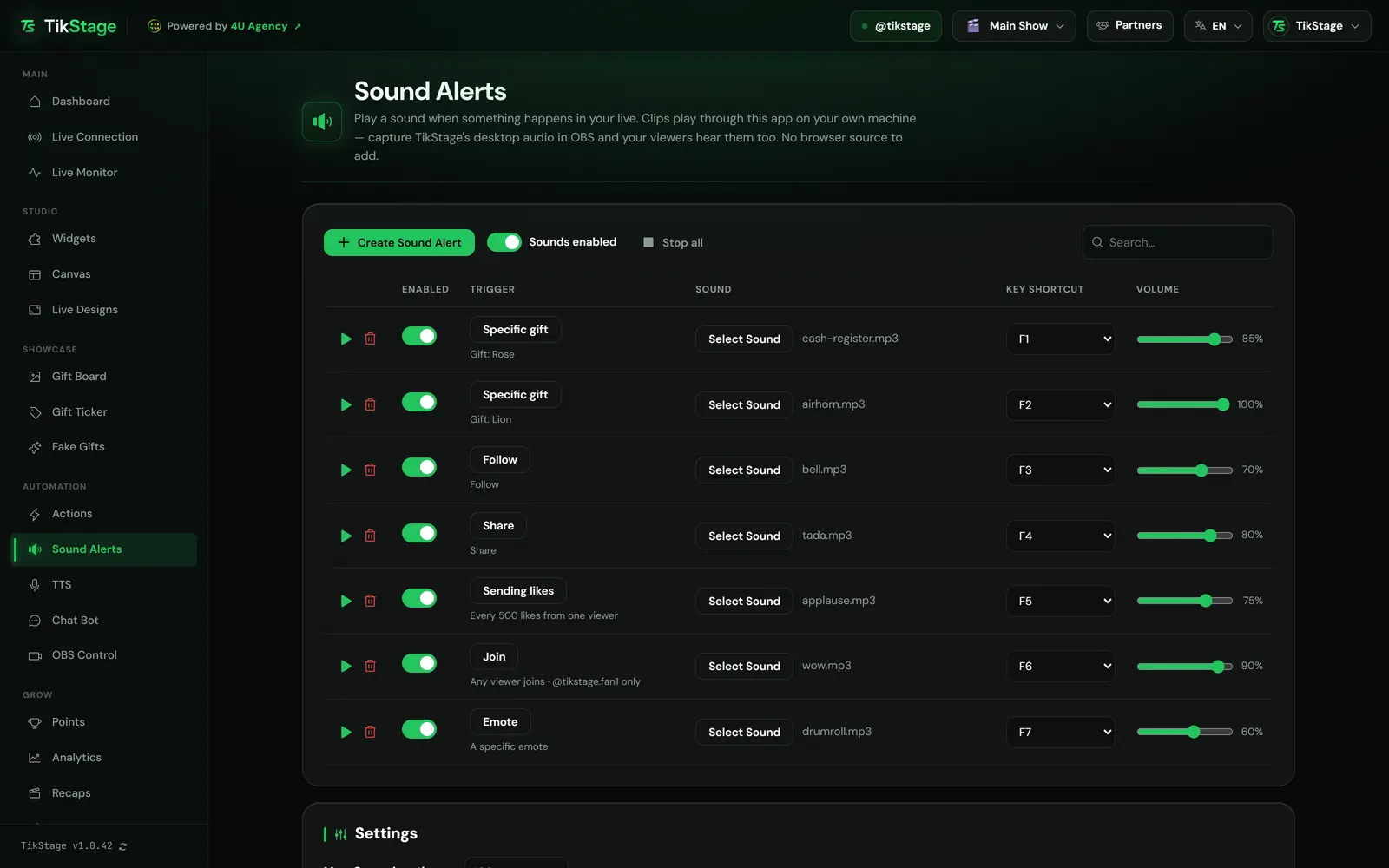
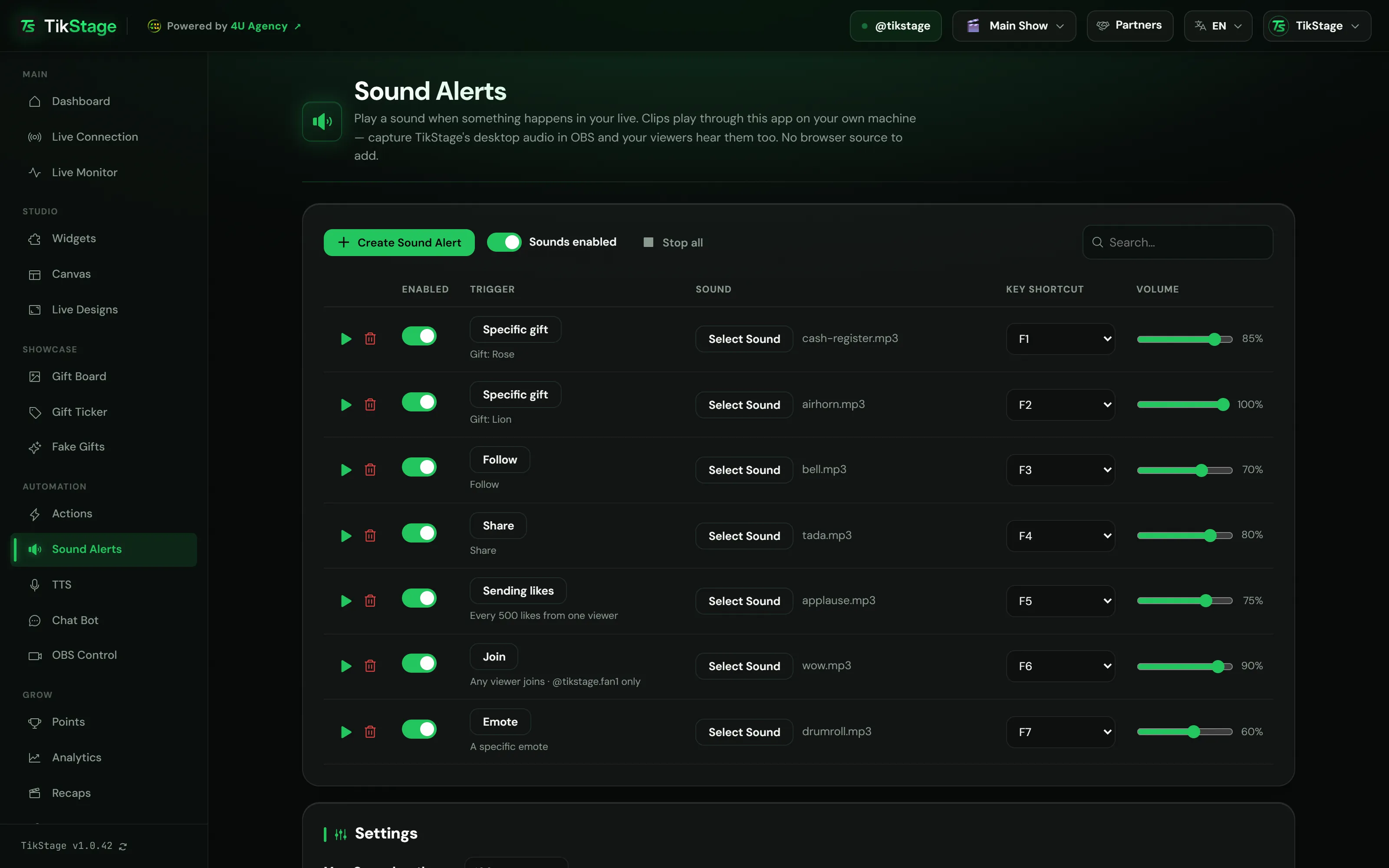
TikStage Sound Alerts play a sound you choose when something happens on your TikTok LIVE: a gift, a follow, likes, a share, a chat command and more. The clip plays through the TikStage desktop app on your PC, so OBS can capture it as desktop audio and your viewers hear it, with no browser source to add.
At a glance
| Plan | Free on every plan. Sound alerts do not count toward the Free plan's 5 active actions. |
|---|---|
| Where it runs | The TikStage desktop app for Windows. Not in a browser, no Mac build. |
| How viewers hear it | The app plays the sound on your PC. Capture desktop audio in OBS; no browser source needed. |
| Triggers | 10, such as Specific gift, Follow, Sending likes and Chat command. |
| Sounds | MP3, WAV or OGG up to 10 MB, or Browse Sounds. Up to 200 sound alerts per stream profile. |
| Next to Actions | Separate from Actions: one event can play a sound alert and an action. |
02How to set it up
How do I set up sound alerts for my TikTok LIVE?
Install the TikStage desktop app for Windows and connect it to your LIVE. On the Sound Alerts page, create an alert, choose its trigger and sound, switch it on, and capture desktop audio in OBS.
Get the desktop app
Sound Alerts run in the TikStage app for Windows. Connect it to your TikTok LIVE on the Live Connection page.
Download TikStage for WindowsCreate an alert
On the Sound Alerts page, press Create Sound Alert. The new row starts switched off, on a sample clip.
Choose the trigger
Press Choose a trigger, pick When it plays and Who can trigger it, then save. A row cannot be switched on without a trigger.
Pick the sound
Press Select Sound to upload a file or browse sounds, set the volume, press ▶ to hear it, then switch the row on.
Let OBS hear it
TikStage plays the sound through your PC's sound. Capture desktop audio in OBS so it goes out with your stream.
03Triggers
Which events can play a sound on my LIVE?
TikStage Sound Alerts offer 10 triggers: Follow, Subscribe, Share, Join, First activity, Sending likes, Specific gift, Chat message, Chat command and Emote. Each one can be limited to everyone, followers, paying subscribers, moderators, your top 1 to 3 gifters of this LIVE, or one viewer.
| Trigger | Plays when |
|---|---|
| Specific gift | Someone sends the gift you picked. In a combo it plays once per gift: ten Roses, ten sounds. |
| Sending likes | One viewer's own likes reach your number (10 to start), and again at every step after. |
| Follow, Share, Subscribe | Someone follows, shares or subscribes. Subscribe can ask for a minimum number of months. |
| Join, First activity | A viewer joins (any, only new or only returning), or does anything for the first time in this LIVE. |
| Chat message, Chat command | Any message, or one with your keyword; or a command such as !alert. |
| Emote | A viewer sends one of your Fan Club or Super Fan emotes, a chosen one or any. Only the first emote of a message counts. |
When one event matches several of your sound alerts, only one plays: the one for the most personal audience or with the most precise rule, so a chat command wins over any chat message. On a tie TikStage picks one at random. Join and First activity are the exception: every match plays. An emote inside a chat message can add one emote sound.
04Sounds and volume
Where do the sounds come from, and how loud do they play?
Each TikStage sound alert plays one clip: a file you upload (MP3, WAV or OGG, up to 10 MB) or a meme sound found with Browse Sounds. Every alert has its own volume, and the Master volume scales them all.
Browse Sounds searches MyInstants inside the desktop app and lets you listen before you pick; the clip you choose is copied to your own storage. MyInstants sounds are uploaded by its users, so check you have the right to use a clip on stream.
The Master volume multiplies each alert's own volume rather than replacing it: an alert at 80% under a master of 50% plays at 40%. Sounds enabled switches every event sound off at once, and Stop all silences whatever is playing or waiting.
An alert's sounds take turns, in order, while different alerts can play at the same time. Max. Queue length (1 to 500, 100 to start) caps how many sounds of one alert can wait; extra ones are dropped, not played later.
05Key shortcuts
Can I play a sound with a keyboard shortcut?
Yes. Give a TikStage sound alert a Key Shortcut (F1 to F12, Insert, Delete, Home, End, PageUp or PageDown) and pressing that key plays its sound at once, from any page of the desktop app and even while another window, such as your game, is in front.
The key still reaches the window in front, so pick one your game does not use. A shortcut works only on a sound alert that is switched on, follows the Master volume, and never waits behind sounds from live events.
06Limits
What are the limits?
TikStage Sound Alerts run only in the Windows desktop app, play event sounds only while it is connected to your LIVE, and reach viewers only through your desktop audio.
- Windows desktop app only: no browser version, no Mac build. Sounds for live events play only while the app is open and connected to your LIVE.
- The sound plays on your PC's sound output; TikStage has no setting to pick another device. Viewers only hear it if your streaming software captures desktop audio.
- Up to 200 sound alerts per stream profile, and sound files up to 10 MB.
- There is no Gift over N coins trigger for new sound alerts. For a sound on any gift worth a set number of coins or more, use an action.
07Is it free?
Are TikStage sound alerts free?
Yes. Sound Alerts are free on every TikStage plan, including the Free plan with no expiry date, and they do not count toward the Free plan's 5 active actions.
Free plan
All of Sound Alerts
Every trigger, uploads, Browse Sounds and shortcuts, with up to 200 sound alerts in your one stream profile.
Premium
All of Sound Alerts
The same Sound Alerts. Premium raises stream profiles from 1 to 10, each with its own sound alerts and settings.
08FAQ
More questions creators ask
Do I need a browser source in OBS for sound alerts?
No. The sounds play through the TikStage desktop app on your PC; capture desktop audio in OBS and your viewers hear them.
Can I test a sound without going live?
Yes. The play button on each row plays its clip, and the Simulator tab on the Actions page sends test events that play your matching sound alerts too.
How are Sound Alerts different from Actions?
Actions show pictures, videos and text, with a sound if you add one, on overlay screens you add to OBS as browser sources. Sound Alerts only play a sound, straight through the desktop app, and one event can fire both.
Can one gift play a different sound each time?
Yes. Make several sound alerts for the same gift and the same audience, and TikStage picks one of them at random each time.
Do sound alerts wait for text-to-speech to finish?
No. Sounds and the TTS voice are separate, so a sound can play over a comment being read.