01What it does
What are TikStage Live Designs?
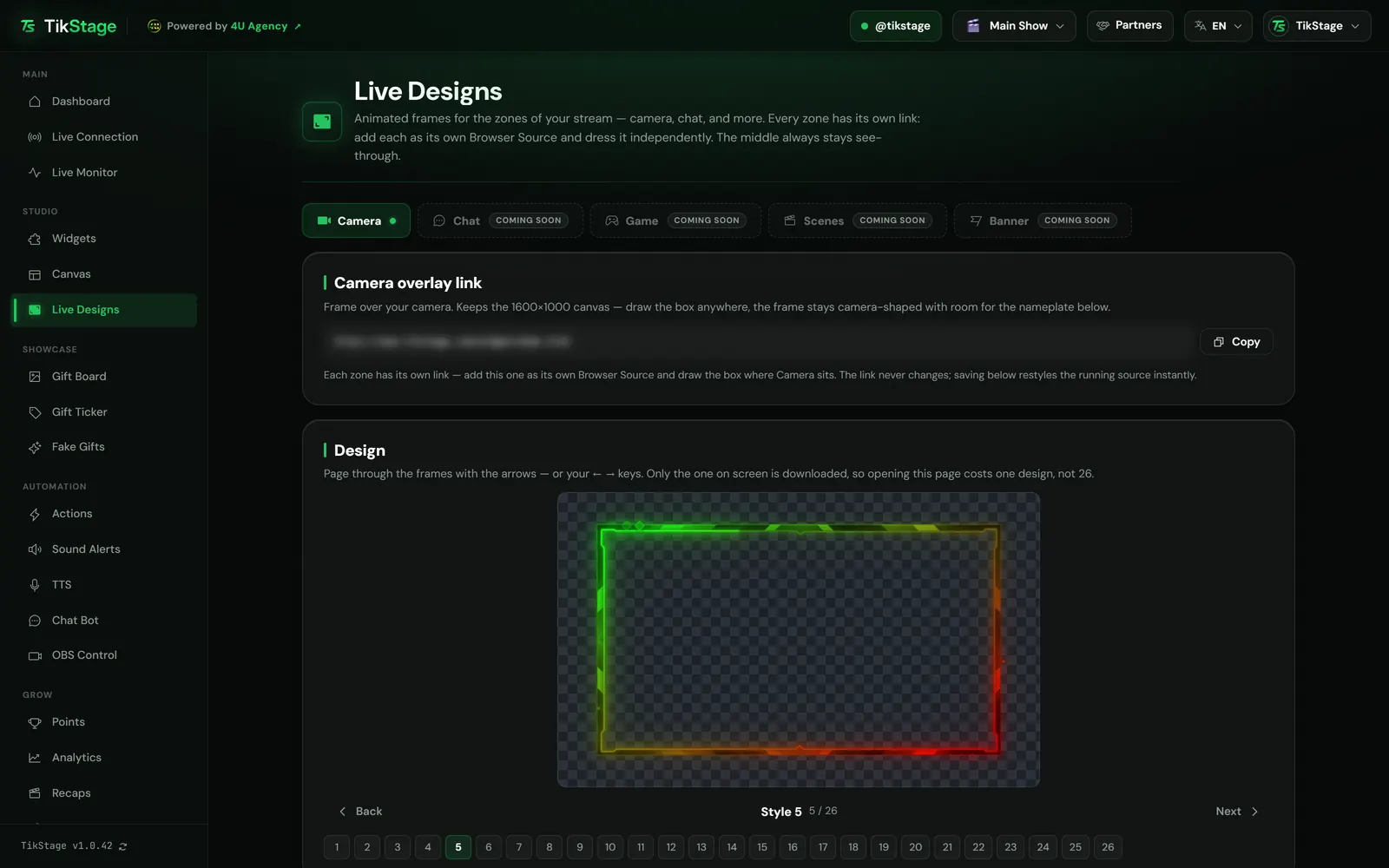
TikStage Live Designs are animated designs for your TikTok LIVE that you add to OBS or TikTok LIVE Studio as browser sources: 26 camera frames that sit around your webcam, and 7 full-screen scenes with a box for your camera and a band for your game. The middle always stays see-through.
At a glance
| Plan | Camera frames: Free. Scenes: Premium on air, free to browse and preview. |
|---|---|
| Where you set it up | The Live Designs page of the TikStage desktop app for Windows, under Studio. Not in a web browser. |
| Where it shows | OBS Studio or TikTok LIVE Studio, each zone as its own browser source (a Link source in LIVE Studio). |
| Designs | 26 camera frames and 7 full-screen scenes (1080 × 1920), all animated loops. |
| Colours | One colour or a two-colour gradient. Scenes can keep their original colours. |
| Live data | 5 camera frames show a gifter and your latest follower while TikStage is connected to your LIVE. |
02How to set it up
How do I add a frame or background to my TikTok LIVE?
Open Live Designs in the TikStage desktop app, pick the Camera or Scenes tab, choose a design and press Save, then copy that zone's link and add it to OBS or TikTok LIVE Studio as a browser source. What you save later reaches the source that is already open.
Open Live Designs
In the TikStage desktop app, open Live Designs under Studio, then the Camera or Scenes tab.
Download TikStage for WindowsPick a design
Page through with Back and Next, your arrow keys or the numbered buttons. The preview plays each design.
Set the colours and save
Choose a colour or a gradient (on a scene, switch Original colors off first), then press Save. The preview changes as you go; OBS changes only when you save.
Copy the link
In the zone's link card, such as Camera overlay link, press Copy. The link never changes, so you add it once.
Add it as a browser source
For a camera frame, draw the box over your webcam. For a scene, make the source 1080 × 1920, the whole screen, above your camera and your game.
How to add a link in LIVE Studio
03Camera frames
Which TikTok LIVE camera frames can I use?
TikStage has 26 animated camera frames, named Style 1 to Style 26, all on the Free plan. Each one is a looping video with a see-through middle, so your webcam shows through it.
Each frame keeps its own shape, centred in whatever box you draw, and plays muted. Five frames carry live data, marked LIVE DATA on the page: Style 1, 9, 16, 19 and 20. Their + spot always shows your latest follower, with nothing to set. For their $ spot you choose:
- Top: the top gifter of this LIVE with their coins, such as
TikStage Fan x 5.3K coins. - Last: the nickname of your latest gifter.
The spots fill in while TikStage is connected to your LIVE, and start empty on each new LIVE.
04Scenes
How do I get an animated TikTok LIVE background?
With Scenes in TikStage Live Designs: 7 full-screen animated backgrounds, 1080 × 1920, for a vertical LIVE. Each scene has two see-through windows, a box at the top left for your camera and a full-width 16:9 band in the middle for your game, and the scene moves around them.
Add the Scenes link as a browser source the size of your whole screen, 1080 × 1920, and place it above your camera and your game capture. Then fit your camera into the top-left box and your game into the band.
| Scene | What it shows |
|---|---|
| Style 1 | Carbon armour with red lights and smoke. |
| Style 2 | A pastel candy moon and hearts, with cat ears on the camera frame. |
| Style 3 | Halloween: pumpkins, cauldron fire and devil horns on the camera frame. |
| Style 4 | A rainy neon city with flying cars. |
| Style 5 | A dark lab with claw marks, a red warning beacon and glowing flasks. |
| Style 6 | A plane's cargo bay at golden hour, with a jump light. |
| Style 7 | Electric blue, with lightning on the frames. |
05Colours
Can I change the colours of my TikTok LIVE frame?
Yes. Every TikStage camera frame is painted in one colour you choose, green to start with, or in a gradient between two colours. Scenes start in the colours they were painted in, and you can paint them the same way.
- Design color: one colour, the exact same shade on every design.
- Gradient (a second color): the design fades From one colour To another, at an Angle from 0° to 360°. Neighbouring colours blend cleanly; opposite ones, such as green and pink, turn grey where they meet.
- Original colors, on scenes only: on to start with, so the scene keeps its own colours. Switch it off to use your colour or gradient.
OBS and LIVE Studio change when you press Save, with the same link. Reset to defaults puts the starting look back in the editor.
06Limits
What are the limits?
TikStage Live Designs are set up only in the Windows desktop app, the scenes need Premium to show on air, and today only your camera and your whole screen have designs.
- Set up only in the TikStage desktop app for Windows, not in a web browser. The links run in OBS or LIVE Studio.
- On the Free plan, a scene's link shows a Premium Required card in OBS or LIVE Studio instead of the scene.
- The Chat, Game and Banner zones are marked Coming soon and have no link yet.
- A camera frame and a scene can also go on the Canvas, the scene only in 9:16.
- No design has room for your name or other text of your own. Live data shows only on the five camera frames that have it.
07Is it free?
Are TikStage Live Designs free?
The 26 camera frames are free, on TikStage's Free plan with no expiry date, including the colours and the live data spots. The 7 full-screen scenes are part of Premium; on the Free plan you can browse and preview them.
Free plan
26 camera frames
Every camera frame on air, with your colours and the live data spots. Scenes can be browsed and previewed on the page.
Premium
Frames and scenes
The 7 full-screen scenes on air too, in their own colours or yours.
08FAQ
More questions creators ask
Do Live Designs work in TikTok LIVE Studio?
Yes. Each zone's link goes into TikTok LIVE Studio as a Link source, or into OBS. The Overlays guide shows the LIVE Studio steps.
Will a camera frame cover my face?
No. The middle of every frame is see-through, so your webcam shows through it.
Can I try a scene before I pay?
Yes. On the Free plan you can browse and preview every scene on the Live Designs page. It shows on your LIVE only with Premium.
I upgraded. Do I need a new link for my scene?
No. The link never changes, and a source showing the Premium Required card reloads by itself within a couple of minutes.
How do I hide a frame for one LIVE?
Open that zone's tab and turn its Overlay on switch off. It saves by itself and hides the zone in OBS until you turn it back on.