01What it does
What does the TikStage PC Optimizer do?
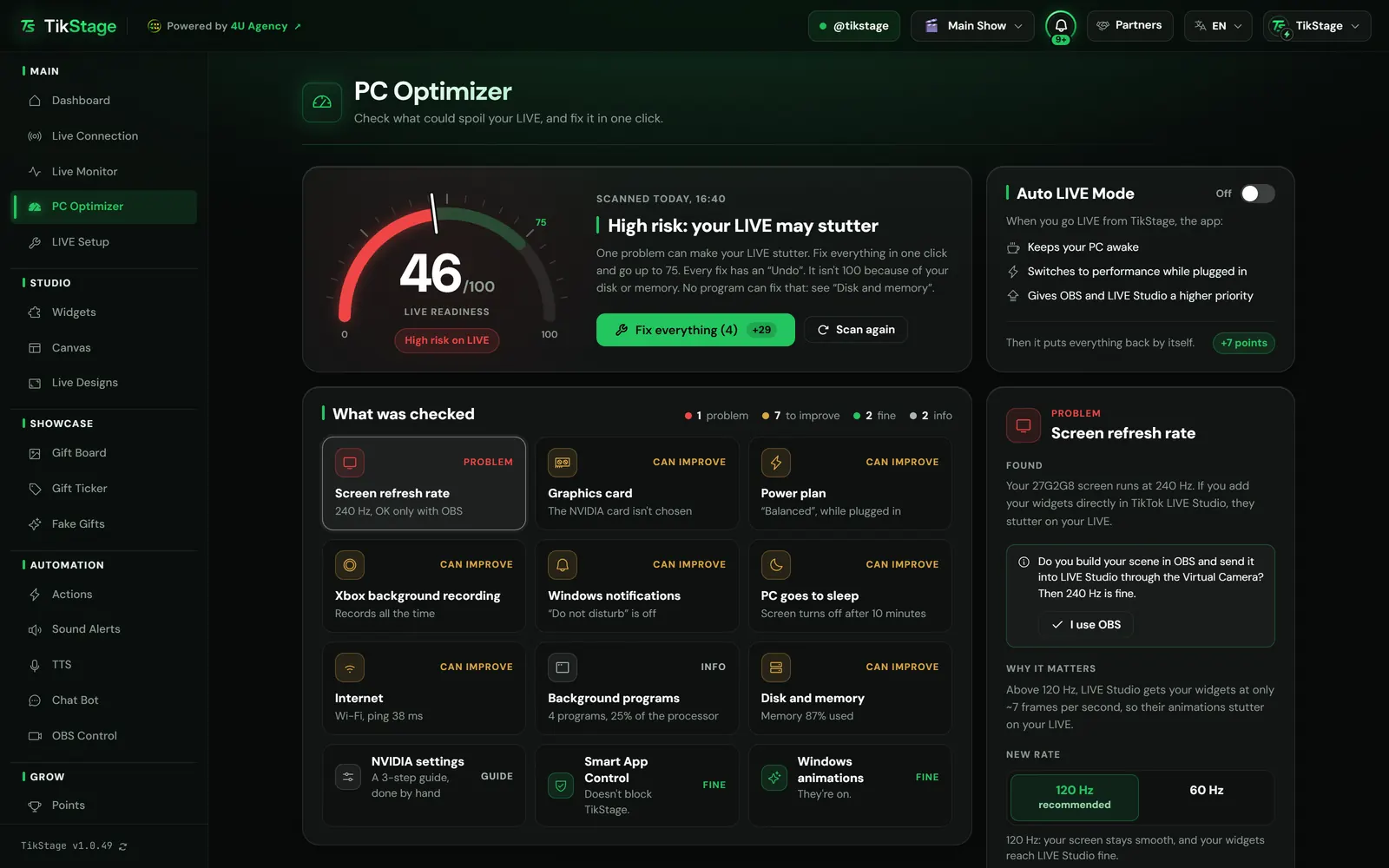
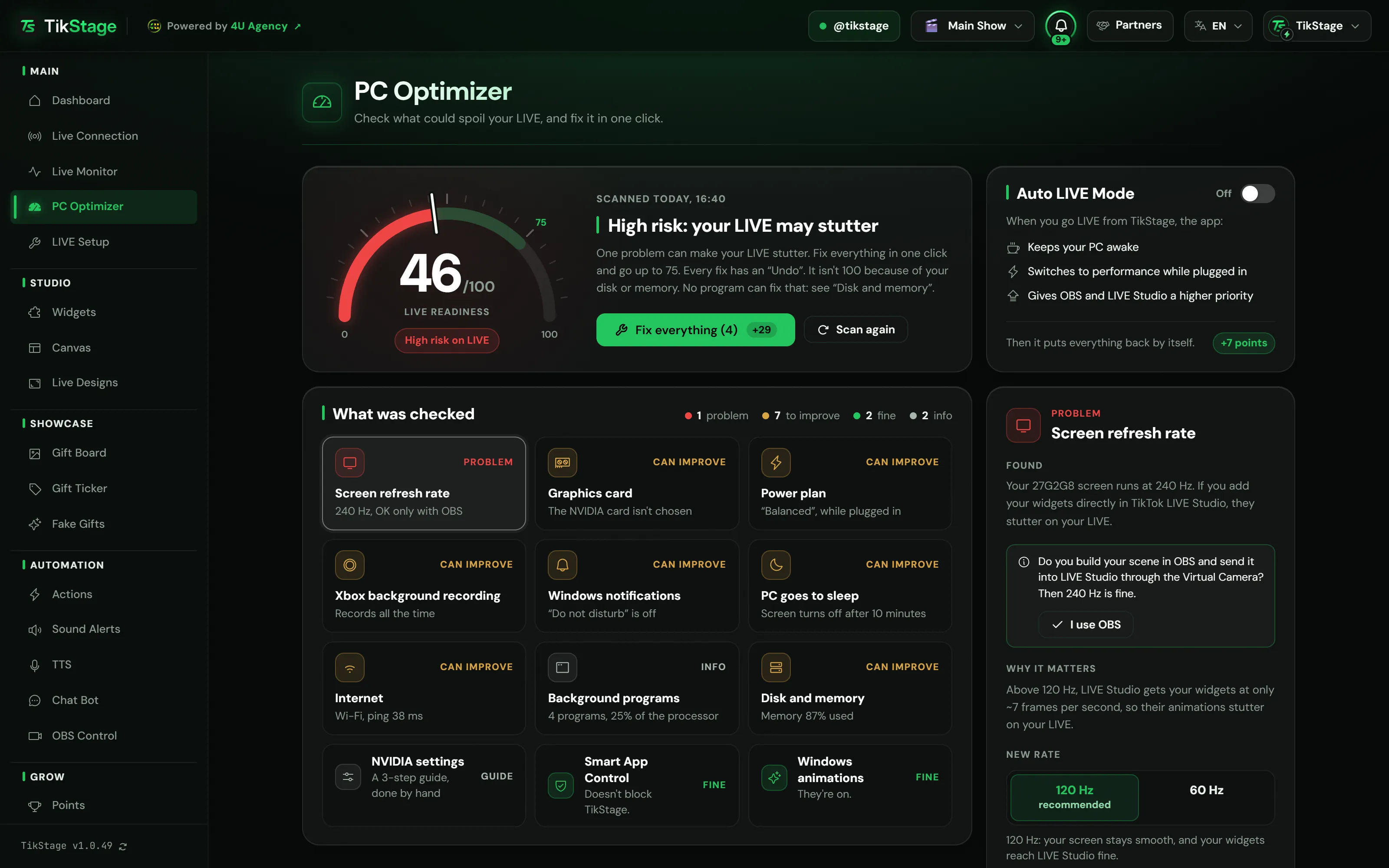
The TikStage PC Optimizer checks 12 things that can spoil a TikTok LIVE, from your screen's refresh rate to your internet, disk and memory, and scores your PC out of 100. It fixes what a program can fix in one click and explains the rest.
At a glance
| Plan | Free for everyone, on every plan. |
|---|---|
| Where it runs | The PC Optimizer page of the TikStage desktop app. Windows only. |
| Checks | 12, read in about 10 seconds. |
| Score | Out of 100: 90 to 100 Ready for LIVE, 80 to 89 Almost ready, 50 to 79 May stutter on LIVE, 0 to 49 High risk on LIVE. |
| Changes | Only when you press a fix. Every fix has an Undo. |
02How to use it
How do I optimize my PC for TikTok LIVE?
Install the TikStage desktop app for Windows, open PC Optimizer, press Check my PC and fix what it finds. Auto LIVE Mode keeps the PC ready while you are LIVE.
Get the desktop app
The PC Optimizer only works in the TikStage desktop app.
Download TikStage for WindowsCheck your PC
Open PC Optimizer in the sidebar and press Check my PC. Each check becomes a tile; open one to see what was found and why it matters.
Fix what you want
Press Fix everything or a tile's own fix. A new screen rate asks Keep 120 Hz? and goes back by itself after 15 seconds unless you keep it.
Turn on Auto LIVE Mode
Switch on Auto LIVE Mode, then connect TikStage to your LIVE as usual.
How to connect to your LIVE
03What it can fix
What can the PC Optimizer fix in one click?
The TikStage PC Optimizer fixes five Windows settings: the screen's refresh rate, the graphics card TikTok LIVE Studio and TikStage use, the power plan, Xbox background recording and Windows animations. Two more go to Auto LIVE Mode or to the right Windows Settings page.
| Check | What it finds | What TikStage does |
|---|---|---|
| Screen refresh rate | A screen above 120 Hz: TikTok LIVE Studio then gets widgets added to it directly at only about 7 frames per second. | Sets 120 Hz (recommended) or 60 Hz. |
| Graphics card | Two graphics cards, and Windows may start LIVE Studio or TikStage on the built-in one. | Sets both to the stronger card, from their next start. OBS is left alone on purpose. |
| Power plan | “Balanced” while plugged in, or “Power saver”. | Switches to performance; on a desktop PC, Ultimate Performance. Never on battery. |
| Xbox background recording | Windows keeps recording your screen on the video encoder OBS and LIVE Studio need. | Turns it off. |
| Windows animations | Animation effects are off, so some programs show frozen pictures. | Turns them on. Reopen OBS and LIVE Studio. |
| PC goes to sleep | The screen turns off or the PC sleeps in under 3 hours idle. | Auto LIVE Mode keeps the PC awake while you are LIVE. |
| Windows notifications | Do not disturb is off. | Opens the right Windows Settings page: Windows does not let programs silence notifications. |
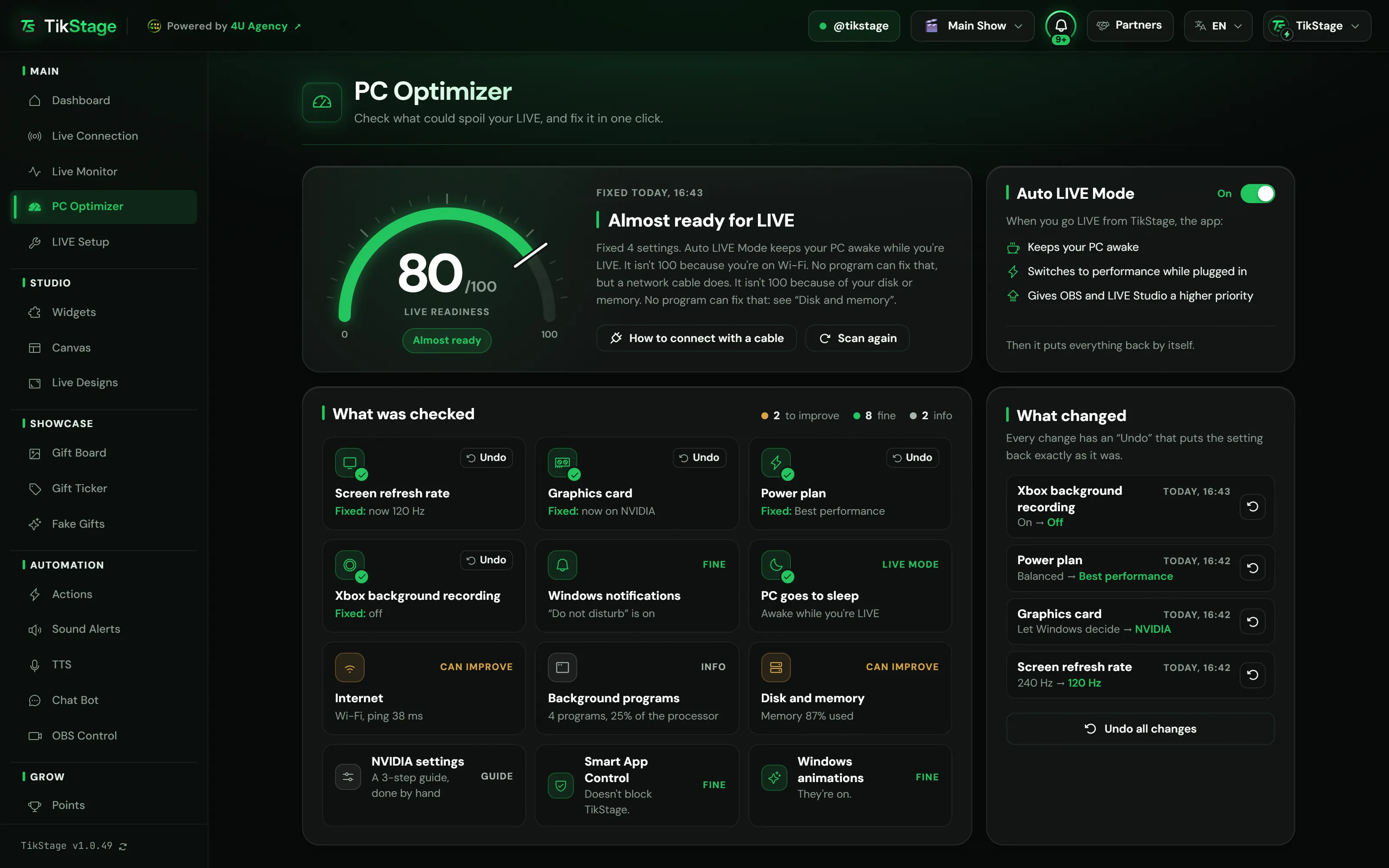
Build your scene in OBS and send it into LIVE Studio through the Virtual Camera? Press I use OBS on the refresh rate tile and a fast screen counts as fine. If your widgets stutter in LIVE Studio, pressing Connect first shows a red warning with Fix it with PC Optimizer.
Undo, and what it never does
- Every fix has an Undo, and Undo all changes reverts them all. A setting you or another program changed since is left as it is.
- It never asks for admin rights, never touches your antivirus and never asks you to turn off Smart App Control.
- It never closes a program without your click, and never closes Windows itself, security programs, OBS, LIVE Studio or TikStage.
04What it leaves to you
What does the PC Optimizer check but leave to you?
Five PC Optimizer checks only report and leave the choice to you: internet, disk and memory, background programs, graphics card settings and Smart App Control.
- Internet: cable, Wi-Fi, mobile data or VPN, and your ping to TikTok. Wi-Fi, mobile data, lost connections and a slow ping lower the score; the page shows how to connect with a cable.
- Disk and memory: HDD or SSD, how busy it is and how full your memory is. Restart and close what you don't need before a LIVE. On an HDD, an SSD is the real fix; more memory helps too.
- Background programs: heavy programs with their processor and memory use, each with its own Close. Closing has no Undo and does not change your score.
- Graphics card settings: a 3-step guide for the NVIDIA Control Panel or AMD Software, done by hand.
- Smart App Control: whether it blocks TikStage. TikStage never asks you to turn it off.
A setting Windows does not let TikStage read is marked Not read and does not count in the score.
05Auto LIVE Mode
What does Auto LIVE Mode do during my LIVE?
Auto LIVE Mode is a switch on the PC Optimizer page. While TikStage is connected to your own LIVE, it keeps your PC awake, switches to performance while plugged in and gives OBS and TikTok LIVE Studio a higher priority, then puts it all back by itself.
- Performance: only while plugged in, and Ultimate Performance on a desktop PC. A performance plan you chose yourself is left as it is.
- Priority: OBS and LIVE Studio go from Normal to Above normal, never higher. A priority someone else set is left alone.
It is off until you turn it on, and works only on your own LIVE, not on someone else's. Even after a crash, the next start puts your settings back.
06Limits
What are the limits?
The PC Optimizer works only in the TikStage desktop app for Windows, and it changes Windows settings only: it cannot fix your internet, disk or memory.
- Not in a browser, and an older app asks you to update first.
- It cannot switch you to a cable, add memory, silence notifications or change NVIDIA and AMD settings for you. The page tells you what to do instead.
- The power plan is not changed on battery: plug your laptop in.
- If another program puts its own setting back, TikStage marks it Changed by another program and does not fight it.
- If Smart App Control blocks the part that reads your settings, the page cannot check that PC.
07Is it free?
Is the PC Optimizer free?
Yes. The TikStage PC Optimizer is free for everyone, including the Free plan with no expiry date. It needs the TikStage desktop app for Windows.
Free plan
The whole PC Optimizer
All 12 checks, every fix with its Undo, and Auto LIVE Mode.
Premium
The same PC Optimizer
There is no Premium-only part.
08FAQ
More questions creators ask
Does the scan change anything on my PC?
No. The scan only reads your settings, and nothing changes until you press a fix.
I use OBS with the Virtual Camera. Do I need to lower my refresh rate?
No. Press I use OBS on the refresh rate tile: your widgets reach LIVE Studio through the Virtual Camera, so a fast screen is fine.
Why is my score not 100 after Fix everything?
Some things no program can fix, such as Wi-Fi, a slow disk or full memory. The page names what is left and what to do.
Does it work on a Mac or in the browser?
No. It reads Windows settings, so it only works in the TikStage desktop app for Windows.